
How to
How to move Mac apps to an external drive without breaking them
Dragging an app out of Applications moves the bundle and loses everything else. What a safe relocation actually involves, and why a shortcut at the original path is the part that matters.
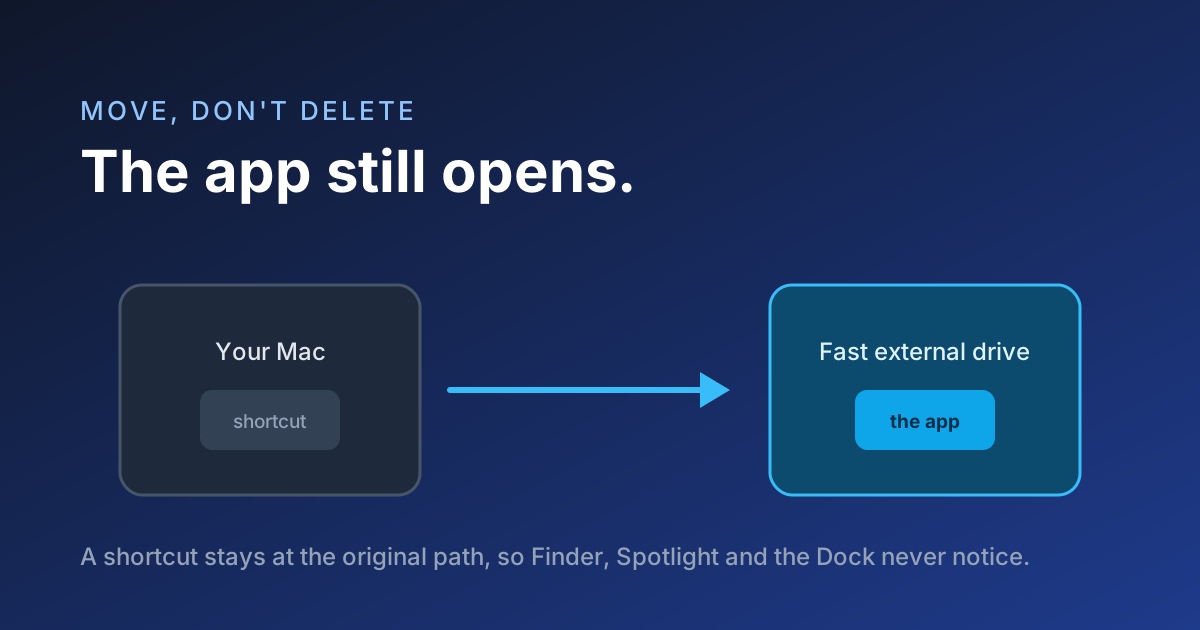
Applications are often the largest single category on a Mac, and the advice you usually get is to uninstall the ones you rarely use. That is a poor trade when the app is one you need occasionally. There is a better option: move it to an external drive and keep it working.
Why dragging an app to a drive usually breaks it
Dragging an app out of the Applications folder moves the bundle but nothing else. macOS still expects it at the original path, so Launch Services, Spotlight, the Dock and login items lose track of it. Some apps refuse to start; others start and cannot find their own support files.
What a safe relocation actually involves
- Copy the bundle to the drive and verify the copy is complete before anything is removed.
- Leave a shortcut at the original path, so every part of macOS that remembers where the app lived still finds it.
- Keep the app's support files where the app expects them, because sandboxed apps cannot follow a link out of their container.
- Make the whole thing reversible, so moving it back is one click rather than a reinstall.
What you get back
A handful of large creative or developer apps can be twenty to sixty gigabytes together. Moving them to a fast external SSD returns that space to your internal disk, and on a modern drive you are unlikely to notice a difference in launch time.
Move an app without breaking itEvery move is reversible. Nothing is deleted to make space.