
Storage
Your Files Live Everywhere Now: How to Manage Mac Storage as One
Your files now live on a Mac, external drives, several cloud accounts and other devices. What each place is good at, what scattered storage costs you, and how to manage it all as one system.
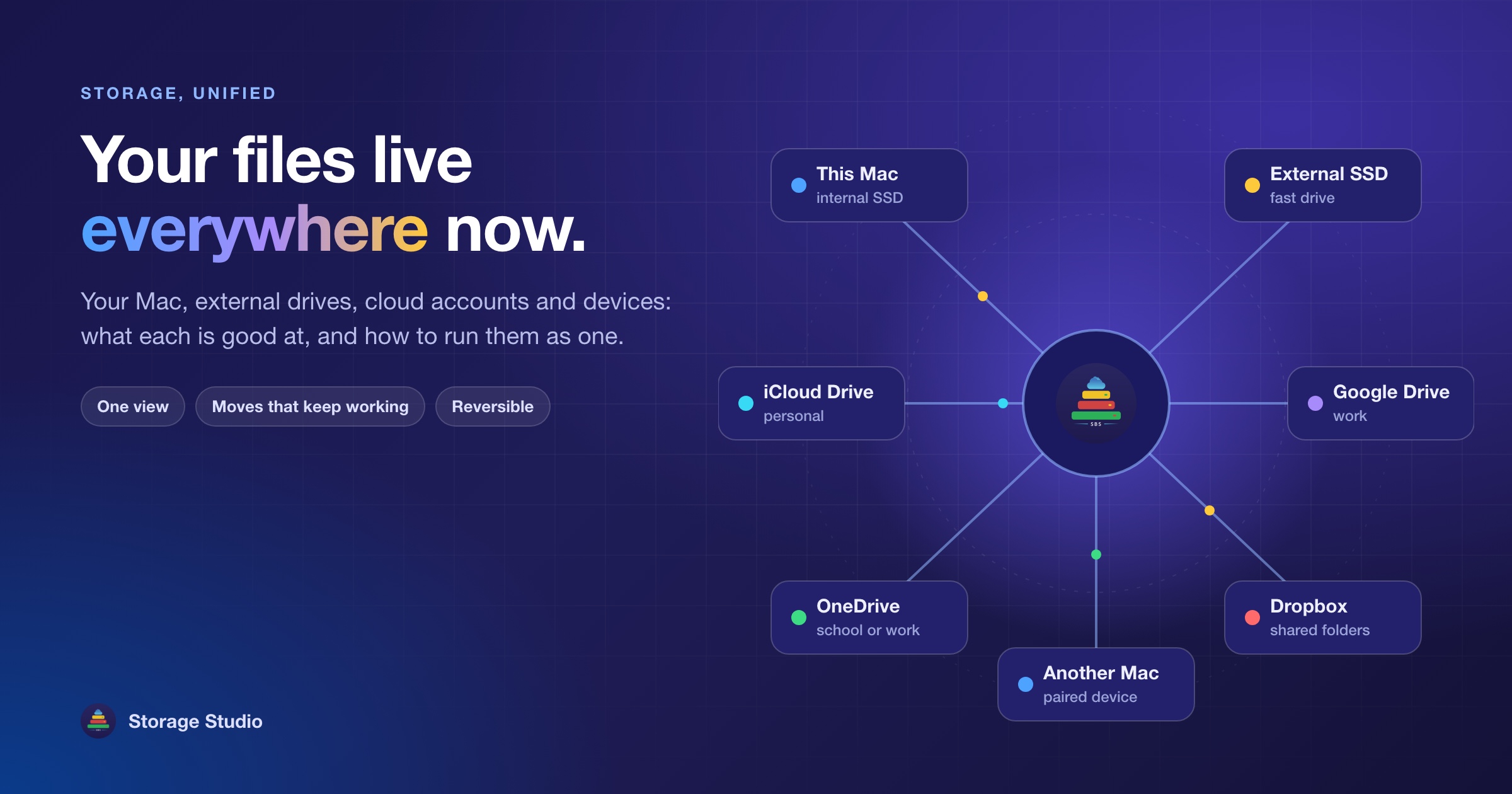
Ten years ago, "your storage" meant one disk. Today it's a Mac with a fixed internal drive, an external SSD or two, iCloud for the phone, a Google Drive or OneDrive account from work, a Dropbox someone shared with you years ago, and maybe a second Mac or a network drive at home. The question has quietly changed from how much space do I have? to where does everything live, and how do I keep it under control? Here's how the pieces fit, what each one is genuinely good at, and how to manage them as one instead of six.
Why is personal storage so scattered now?
Four shifts happened at the same time.
- The internal drive is fixed. On Apple silicon Macs the SSD is built in and can't be upgraded later, so growth has to happen somewhere else. Can you upgrade a Mac's SSD?
- Cloud accounts multiply. A personal account, a work account, a free tier with one service and a family plan with another. Each has its own app, its own folder and its own idea of what's "online-only".
- External SSDs became fast enough to work from. Over USB4 or Thunderbolt a good NVMe drive is quick enough for apps, photo libraries and video projects, not just for archiving.
- Files kept getting bigger. High-resolution photos and 4K video by default, creative apps and games of tens of gigabytes, and local AI models of several gigabytes each.
None of these is a problem on its own. Together they produce storage that's bigger than ever and harder than ever to see in one place.
What does scattered storage actually cost you?
- Time spent looking. Was that contract in Google Drive, on the external drive, or still in Downloads? Every extra place is one more place to search.
- Duplicates you pay for twice. The same photos in iCloud and Google Photos, the same project on the Mac and the drive, each copy taking space and subscription quota.
- Slow, manual moves between clouds. Moving a folder from one account to another usually means downloading everything to your Mac first, then uploading it again.
- Things that break when they move. Dragging an app or a library to an external drive is where most storage problems start. More on that below.
- Gaps in your backups. A file moved to an external drive or a second account is often the only copy, and nobody noticed.
What is each place genuinely good at?
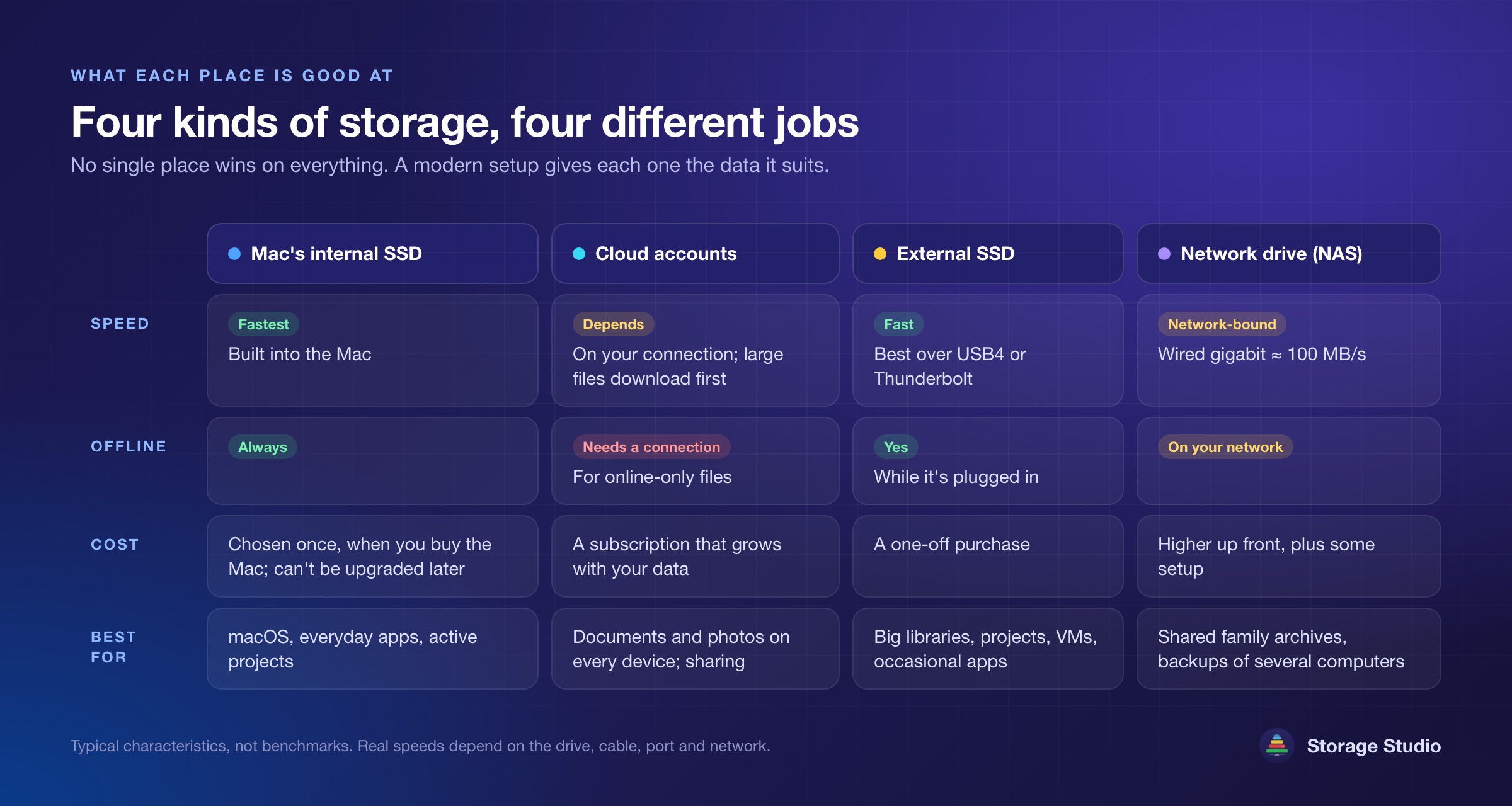
Each part of a modern setup earns its place. The trick is giving each one the data it suits.
The Mac's internal drive
The fastest storage you have and the most expensive per gigabyte. Keep the system, the apps you use every day and the projects you're actively working on here. macOS's own System Settings → General → Storage helps tidy it: recommendations to keep Desktop and Documents in iCloud, remove watched films and empty the Trash automatically. They lean on iCloud, though, and they can't move an app or a library to another drive. What the recommendations actually do.
Cloud accounts
iCloud Drive, Google Drive, Dropbox and OneDrive are excellent for documents and photos you want on every device and for sharing with other people. The trade-offs: an ongoing subscription that grows with your data, a connection to open online-only files, your files on someone else's servers, and data that suits it badly. App libraries, virtual machines and active projects either can't be made online-only or download again every time you open them.
A fast external SSD
The closest thing to a bigger internal drive: you pay once, it works offline, and over a good connection you can work from it directly. Speed depends on the whole chain: USB 3 links run at 5 to 10 Gb/s, while Thunderbolt and USB4 reach 40 Gb/s. A decent USB 3 SSD is fine for apps and documents; large video gains most from an NVMe drive over Thunderbolt or USB4. It has to be plugged in, and it needs its own backup. Choosing an external drive.
A network drive (NAS)
An always-on box on your home or office network, good for shared family archives and backups from several computers. Its speed is limited by the network: wired gigabit tops out a little over 100 MB/s, and Wi-Fi is often slower. Great for archives, a poor home for apps or libraries you work from every day.
Clean-up tools
Useful upkeep, not a strategy. Clearing caches and leftovers that apps rebuild frees space for a while, then it comes back. The good tools preview before removing anything and keep it recoverable. Do you need a cleaner app?
Which data belongs where?
- Documents and photos you want everywhere: a cloud account, with older files kept online-only.
- Large media libraries, finished projects and virtual machines: an external SSD, or a NAS if you mostly archive.
- Big apps you open now and then: an external SSD, moved carefully rather than dragged.
- Work files: the work account, kept apart from personal ones.
- Caches, logs and leftovers: cleared now and then, never moved.
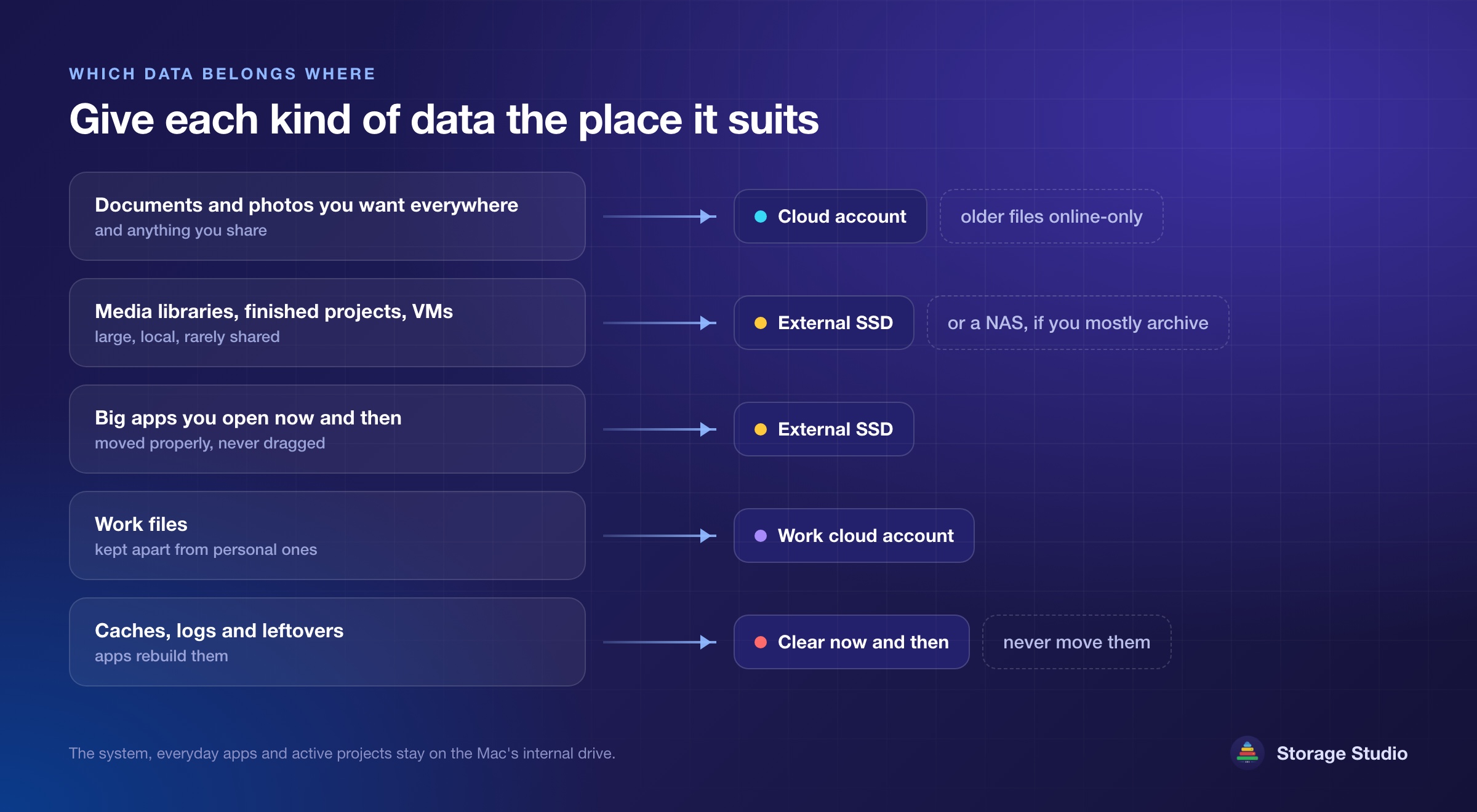
The answer is almost always a mix. What changes the experience is whether you manage that mix as separate islands or as one system. Cloud storage or an external drive?
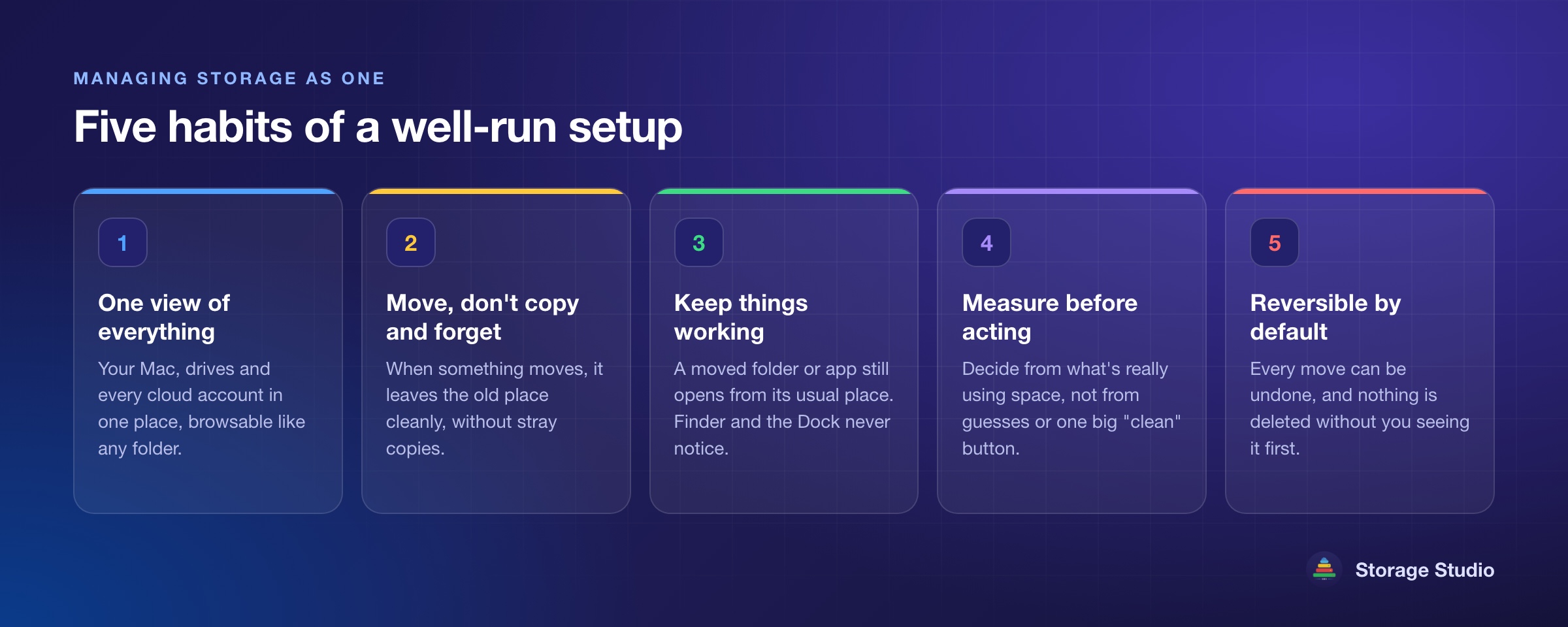
What does managing storage as one look like?
- One view of everything. Your Mac, your drives and every cloud account in one place, browsable like any other folder.
- Move, don't copy-and-forget. When something goes to a drive or another account, it should leave the old place cleanly, without stray copies.
- Keep things working where they were. A folder or app that moves should still open from its usual place, so nothing in Finder, the Dock or your apps notices.
- Measure before acting. Decisions based on what's really using space, not on guesses or one big "clean" button.
- Reversible by default. Every move can be undone, and nothing is deleted without you seeing it first.
See how it comes togetherYour Mac, drives and cloud accounts in one place, explained.
What mistakes cost people data or break their Mac?
- Dragging an app or a library to an external drive. macOS, the Dock and the app still expect it in the old place, so apps stop updating or won't open, and some libraries refuse to load. Dragging in Finder, compared.
- Hand-made links into the Library folder. Sandboxed apps can't follow a link out of their own container, and the wrong permissions on the new copy cause quiet failures.
- Leaning only on cloud optimisation. Files you open often keep downloading again once they're online-only, which is slow on a weak connection and no help offline. Optimise Mac Storage, compared.
- The wrong drive format. For Mac-only use, format the drive as APFS; some libraries, such as Photos, need a Mac-formatted drive.
- One copy and no backup. Moving data to a drive or another account doesn't back it up.
- Unplugging without ejecting. Pulling a drive out while it's being written to can damage what's on it.
Where does Storage Studio fit?
Storage Studio is a storage platform for the Mac, not a cleaner. It brings your Mac, external drives, cloud accounts and devices into one place, so you can move, sync and share across them and stop thinking about where things live. It runs on Apple silicon Macs with macOS 13 or later.
- One location in Finder. Your connected cloud accounts and devices appear as folders in one Storage Studio location, beside your Mac's own files. The Storage Studio location in Finder.
- Moves that keep working. Big folders and apps go to your fast external drive, a link stays at the original place, and Move back reverses it. Apps get a safety check first, and the ones that would break aren't offered a move.
- Copies between accounts. Copy, move or sync folders from one cloud account to another, on a schedule if you like. Copying between two cloud accounts.
- Duplicates across places. Find copies of the same file on your Mac and in your cloud accounts. Duplicates in your cloud accounts.
- Measured, reversible clean-ups. What's Using Space shows what's really taking room, and clean-ups clear only what apps rebuild, never emptying your Trash.
It isn't the right tool if all you need is a shared household archive (a NAS is), or if everything you have fits comfortably in one cloud account. It's for the increasingly common case: storage spread across a Mac, drives and several accounts, and a wish to run it as one.
Frequently asked questions
Can I upgrade the SSD in my Mac?
Not on Apple silicon Macs. The internal storage can't be upgraded by the owner after purchase, so extra space comes from external drives, cloud accounts or a mix of the two.
Can I see all my cloud accounts in Finder at once?
macOS shows iCloud Drive, and each other service adds its own folder through its own app, so they appear one by one. Storage Studio brings connected accounts and devices together in a single location in Finder.
How do I move files between two cloud accounts?
Usually by downloading everything to your Mac and uploading it again, which needs the space and the time. A transfer tool can copy between accounts for you, without keeping a copy on your Mac.
Is cloud storage or an external SSD better?
They solve different problems. The cloud makes files available everywhere but needs a connection and a subscription. An external SSD is a one-off cost, fast and works offline, but it has to be plugged in. Most people use both.
Is it safe to run apps from an external SSD?
Many apps run well from one, as long as they're moved properly and the drive stays connected. Apps that install system components, or that came with macOS, should stay on the internal disk. Which apps can run from a drive.
Related reading: How to move Mac apps to an external drive, Where System Data space really goes, and the Mac storage basics FAQ. Plans and prices are on the pricing page.
Download Storage StudioStart with the free trial. For Apple silicon Macs on macOS 13 or later.